Activity Log
This document explains how to manage the Activity Log in the Jova POS system. This feature allows you to monitor all activities performed by users in the system.
Activity Log Flow
The general flow is:
- Access the Admin → Activity Log menu.
- Filter by Activity Name or Employee Name.
- View the list of activities performed by users.
- Use the search feature to make data retrieval easier.
- The table displays activities with date, user, and activity name details.
1. Accessing the Activity Log Menu
- In the sidebar, click Admin.
- Select Activity Log to access the activity log page.
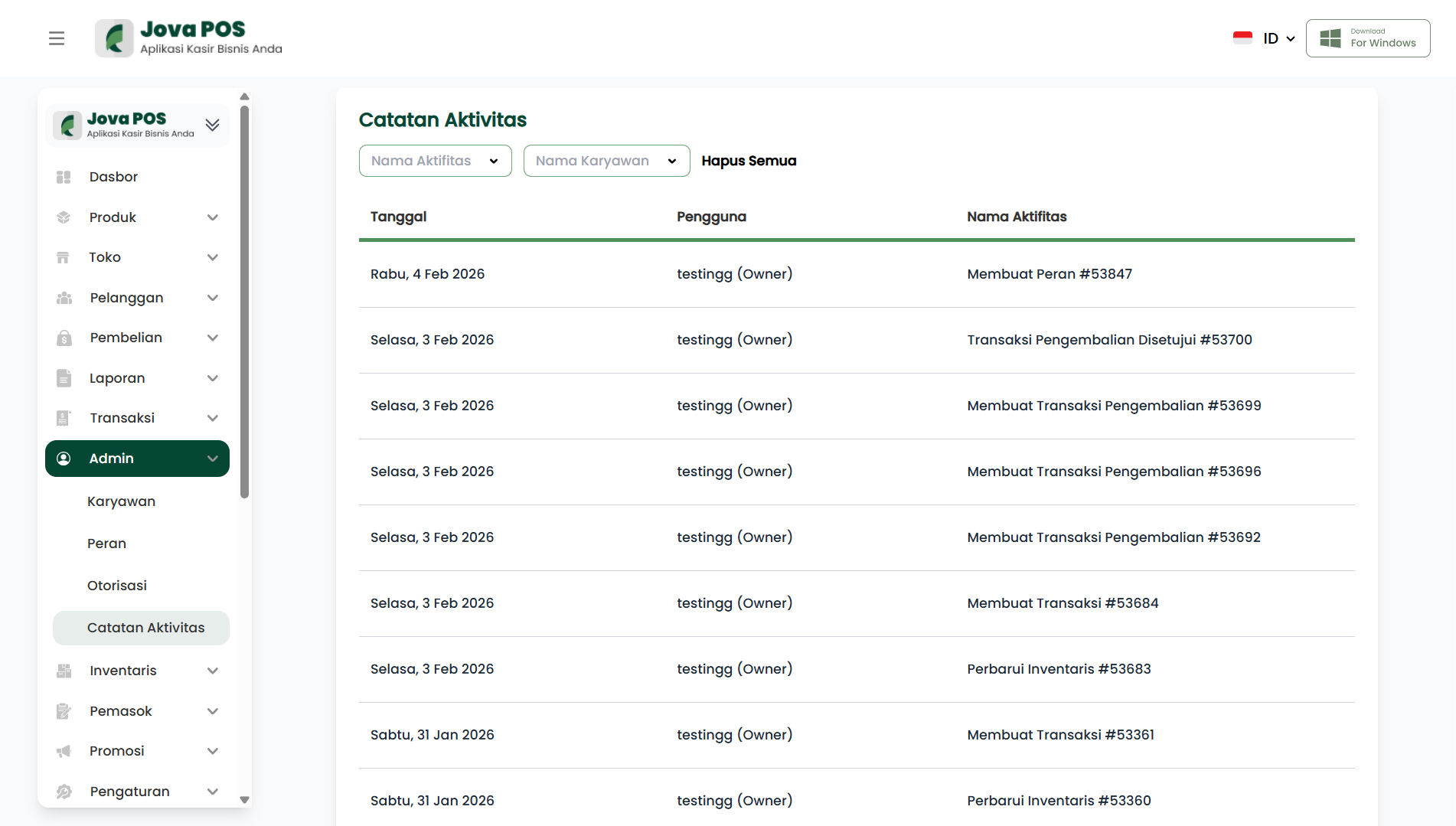
2. Viewing Activity Log
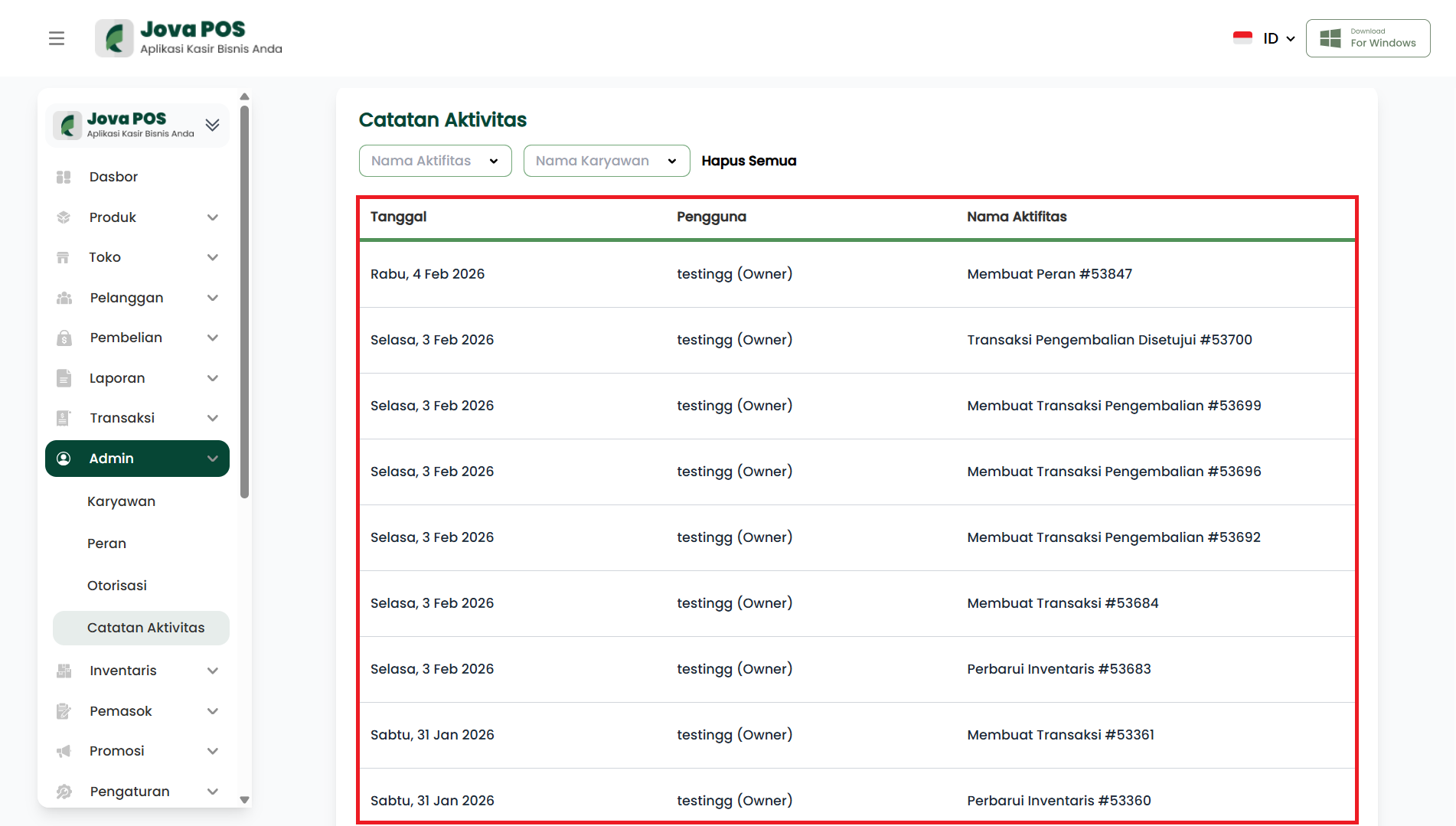
On the Activity Log page, you will see a table displaying the activities performed. This table contains the following information:
- Date: The date the activity was performed.
- User: The name of the user who performed the activity.
- Activity Name: A description of the activity performed.
3. Searching Activity Log
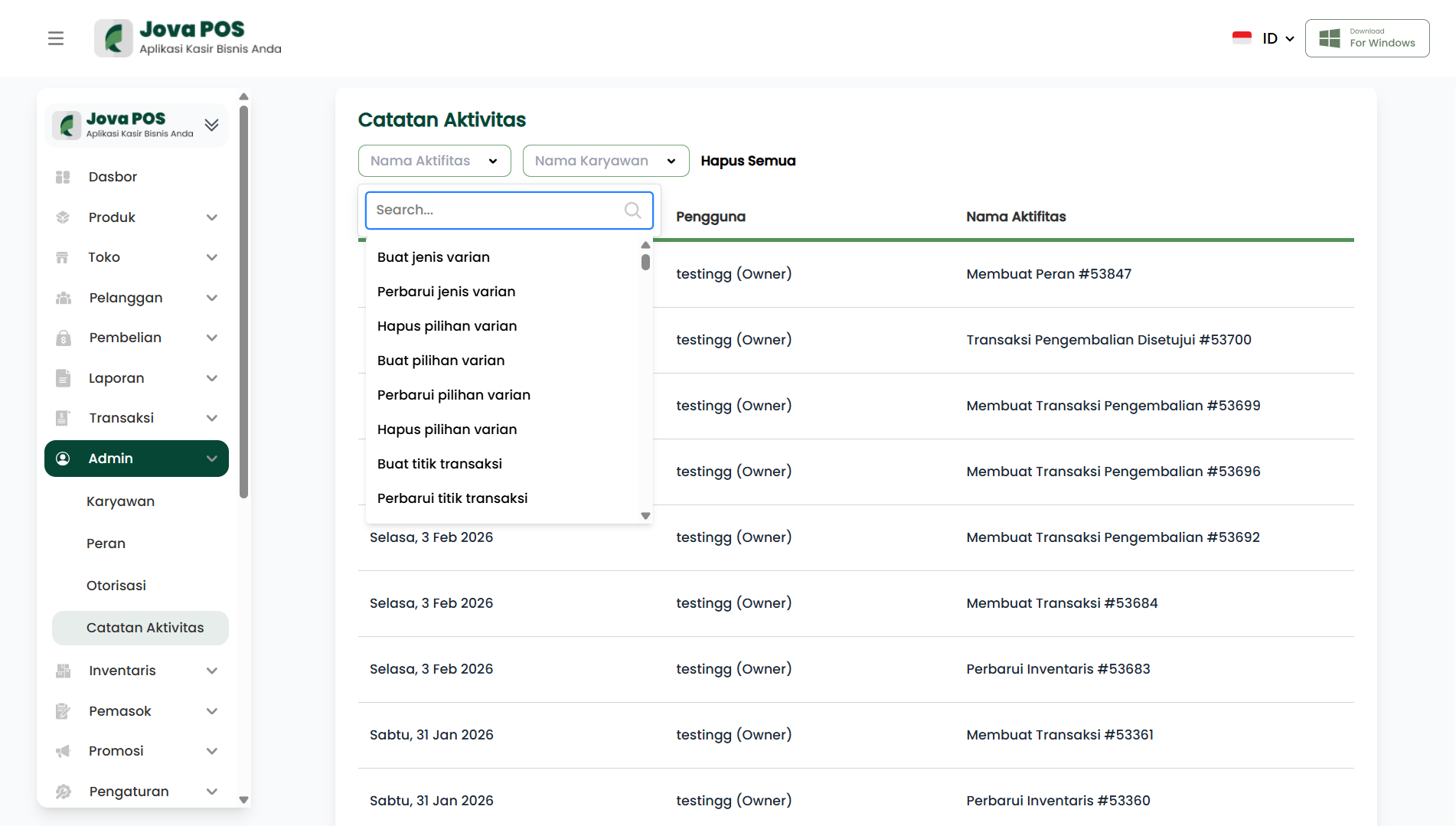
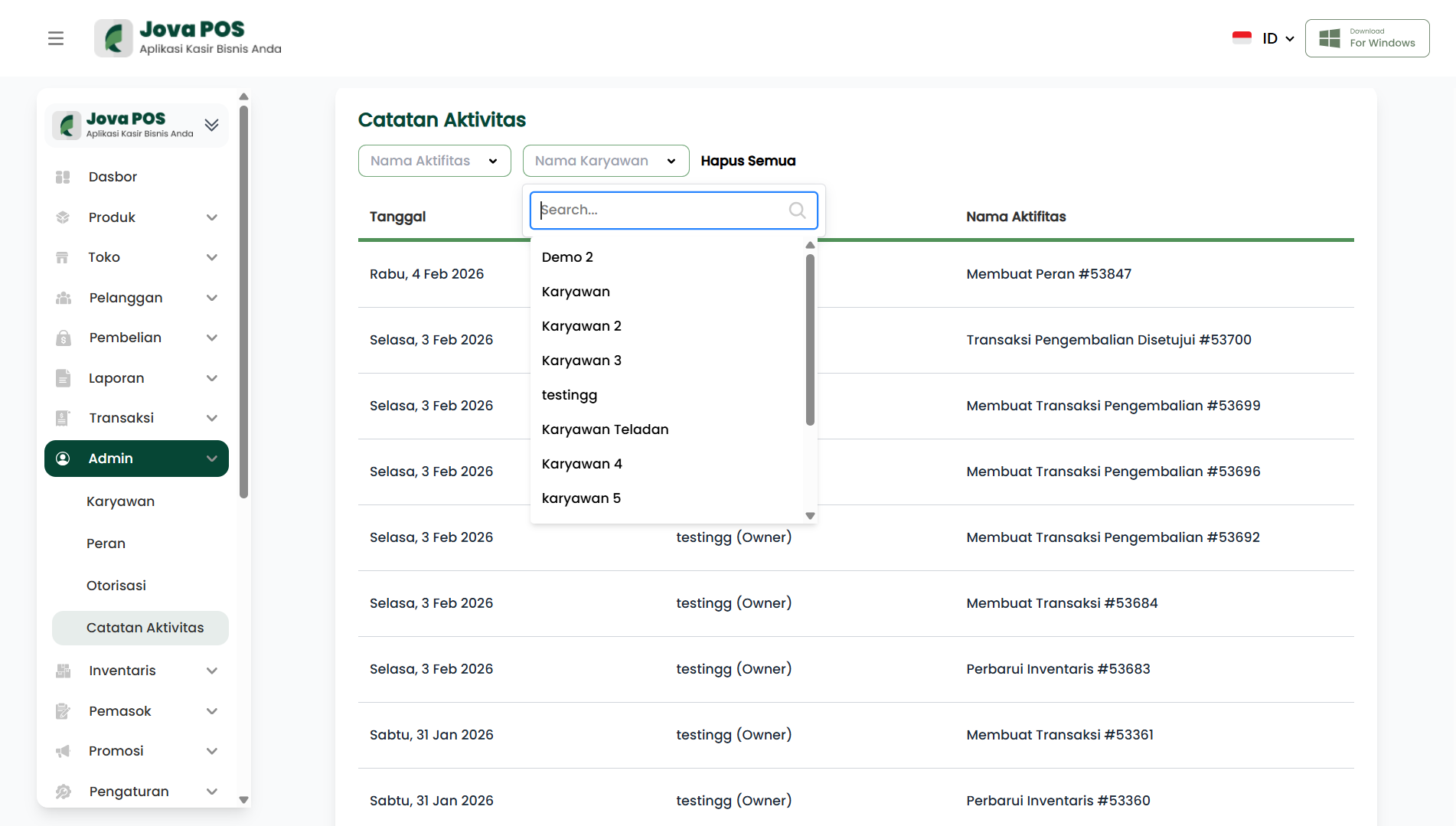
To make searching easier, you can use the Search feature in the Activity Name or Employee Name column.
Searching by Activity Name
Select Activity Name from the dropdown and enter relevant keywords to find a specific activity.
Searching by Employee Name
Select Employee Name and enter the employee's name to filter activities performed by that employee.
Conclusion
The Activity Log feature in Jova POS allows you to easily monitor and track all activities performed in the system. The search and filter features help you find data quickly and efficiently.